# Spielwiese
# Neue Seite
[](https://wiki.rayudw.de/uploads/images/gallery/2025-01/YCyz98PfNbzs2KTa-photo-2024-09-30-17-16-21.jpg)Testing stufgf
**This is bold text**
*This is italic only*
***This is italic AND bold***
***This is also underlined***
sasasa dsdsadsadasdasd
dsadsadsadsadsadsadsadsaddsdsadsadsadsadsadsaddsadsadsadsadsaddsadsadsadsadasddsadasdsadsadsadasdasadsdasadsadsdsasdadsa
dsadsadsadsadsadsadsadsad`dsadsadsadsadsaadsdasdadsadsad`
- [ ] dsadsadadsa
- [ ] dasdsadsada
dsadsada[Hyperlink Stuff ](https://wiki.rayudw.de/rayudw.de "Title")
```c#
dsadsadsadsa
dsdad
sd
sd
s
ds
d
sd
s
d
a
Console.WriteLine("Test");
```
[](https://wiki.rayudw.de/uploads/images/gallery/2025-01/rayuicon-256x256.png)ass
Einklappbarer Blkock!
Dies ist ein einklappbarer Block
| |
|
|
|
|
| |
|
|
|
|
|
| |
| | [](https://wiki.rayudw.de/uploads/images/gallery/2025-01/rayuicon-256x256.png) |
# Flash Win11 iso on Mac
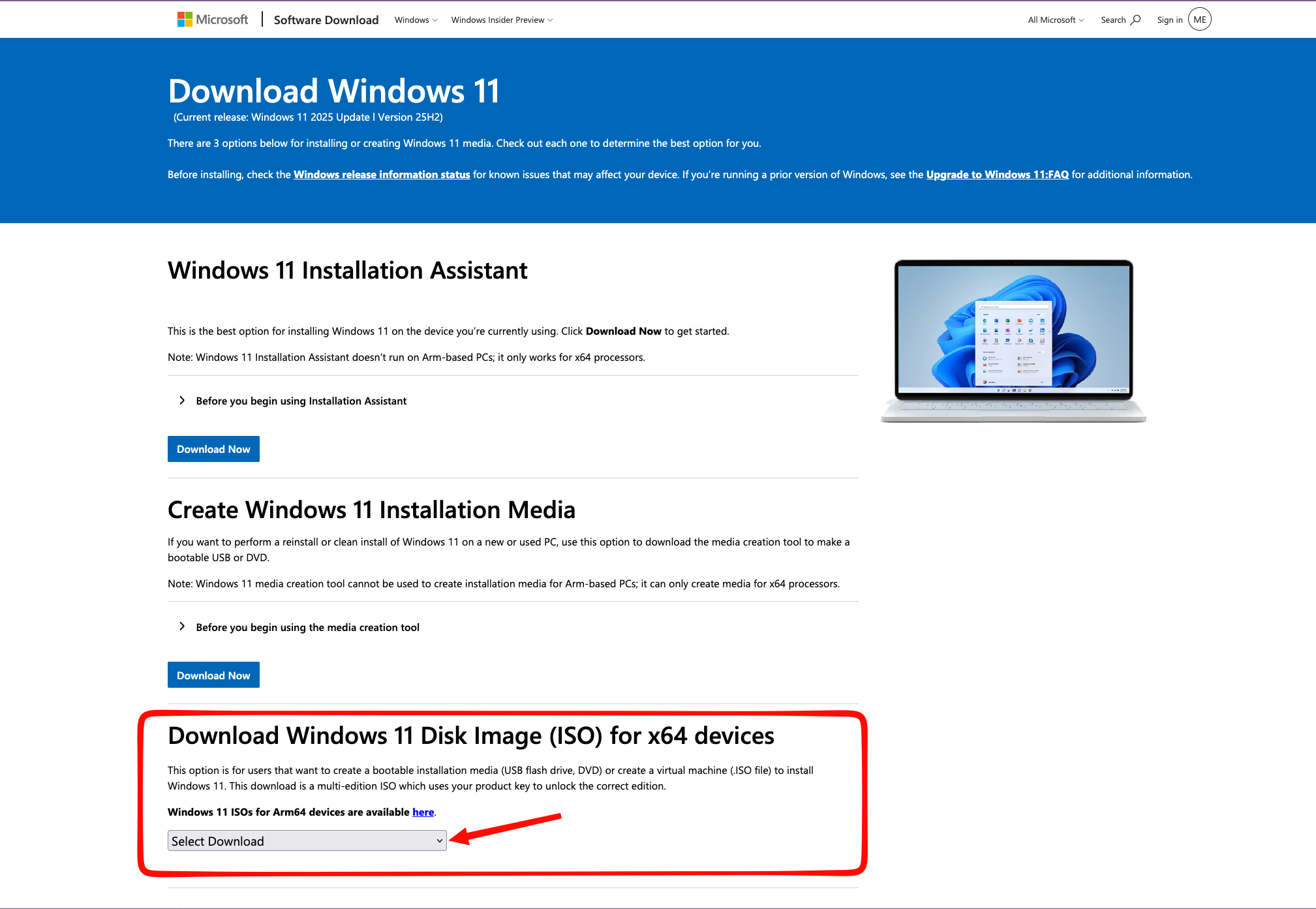
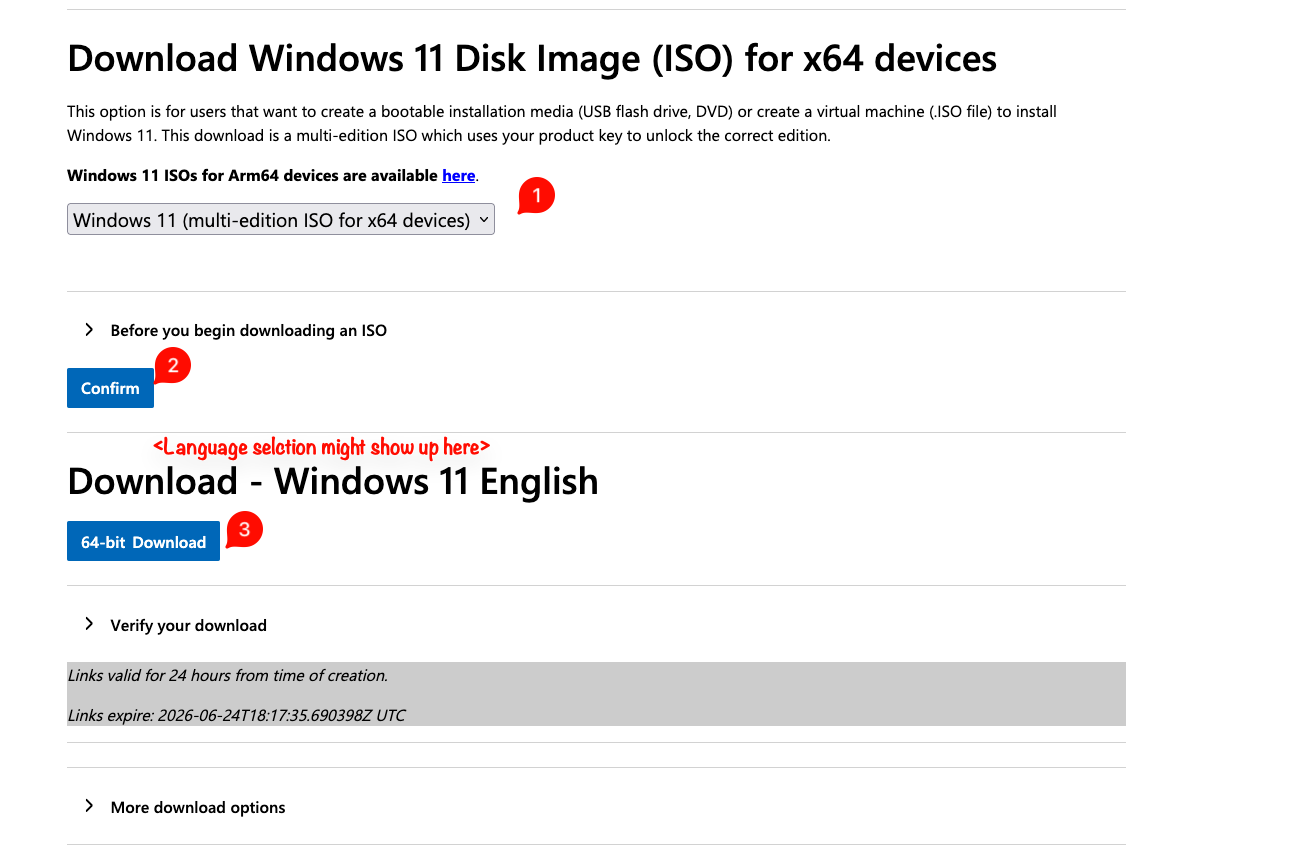
1.) Download the [Win11 iso from Microsoft](https://www.microsoft.com/en-us/software-download/windows11)
[](https://wiki.rayudw.de/uploads/images/gallery/2026-06/ZPlQ5wnmcO8JDUJW-grafik.png)
[](https://wiki.rayudw.de/uploads/images/gallery/2026-06/U6grS6zs8ttPZgrQ-grafik.png)
2.) While downloading, check the attachments and download WinDiskWriter for the processor your device has. Apple M chips are Apple Silicon, older Intel based MAcBooks are Intel!
3.) You might need to allow the app to run.
Open Settings > Privacy & Security > Scroll down until you see a message that an app was vblocked from running > Click allow > Confirm with your password > Run the app again
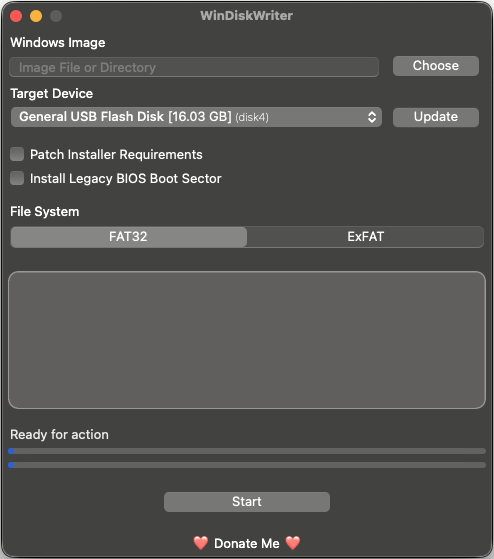
You should be seeing this:
[](https://wiki.rayudw.de/uploads/images/gallery/2026-06/iq4Q4xTXiKzXn3aW-grafik.png)
- *Choose the downloaded Windows iso file*
- *Select the USB drive you want to flash it on (careful, USB hard drives might be detected as wlel. Double check please!)*
- *Use ExFAT as file system*
- *Press Start*
This will take a while then:
[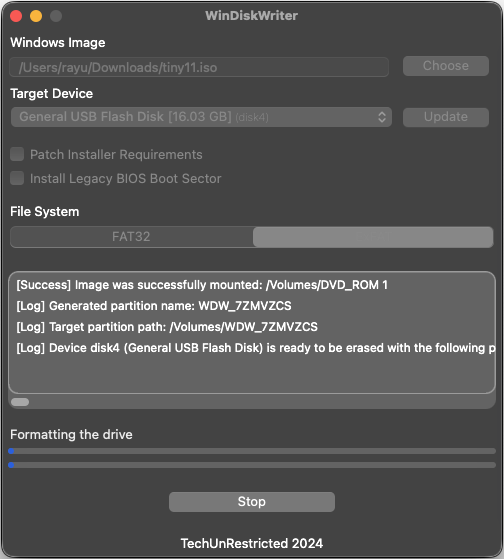](https://wiki.rayudw.de/uploads/images/gallery/2026-06/0UtFgOvlimK4nwjo-grafik.png)
When everything's doe, you'll see this:
[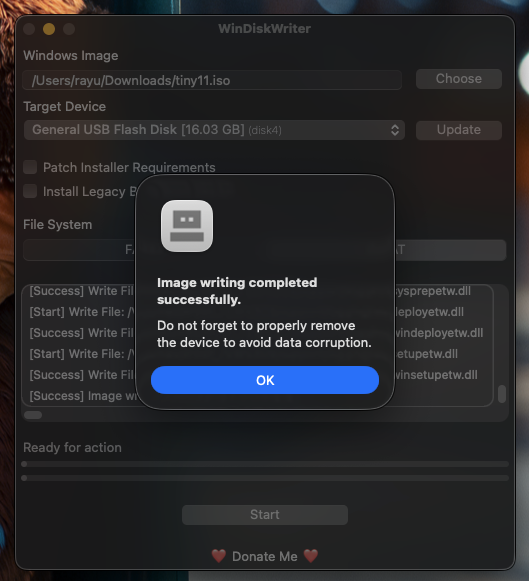](https://wiki.rayudw.de/uploads/images/gallery/2026-06/Sy3ru90EP9OOUAuc-grafik.png)
- Safely eject the flash drive
- Insert the flash drive to the target PC
Now, the next thing could be a bit tricky depending on the hardware manufacturer:
- Boot into the BIOS (usually, one of the F keys or DEL on the keyboard. Check for the hardware manufacturer!)
- Look where the boot evices are
- Select the USB drive and hit enter
Now the Windows image should load after a while
If you see a "Press any key or to boot from CD or DVD..." prompt, press any key.