
Creating a new project
Creating a new project in Godot is an easy process.
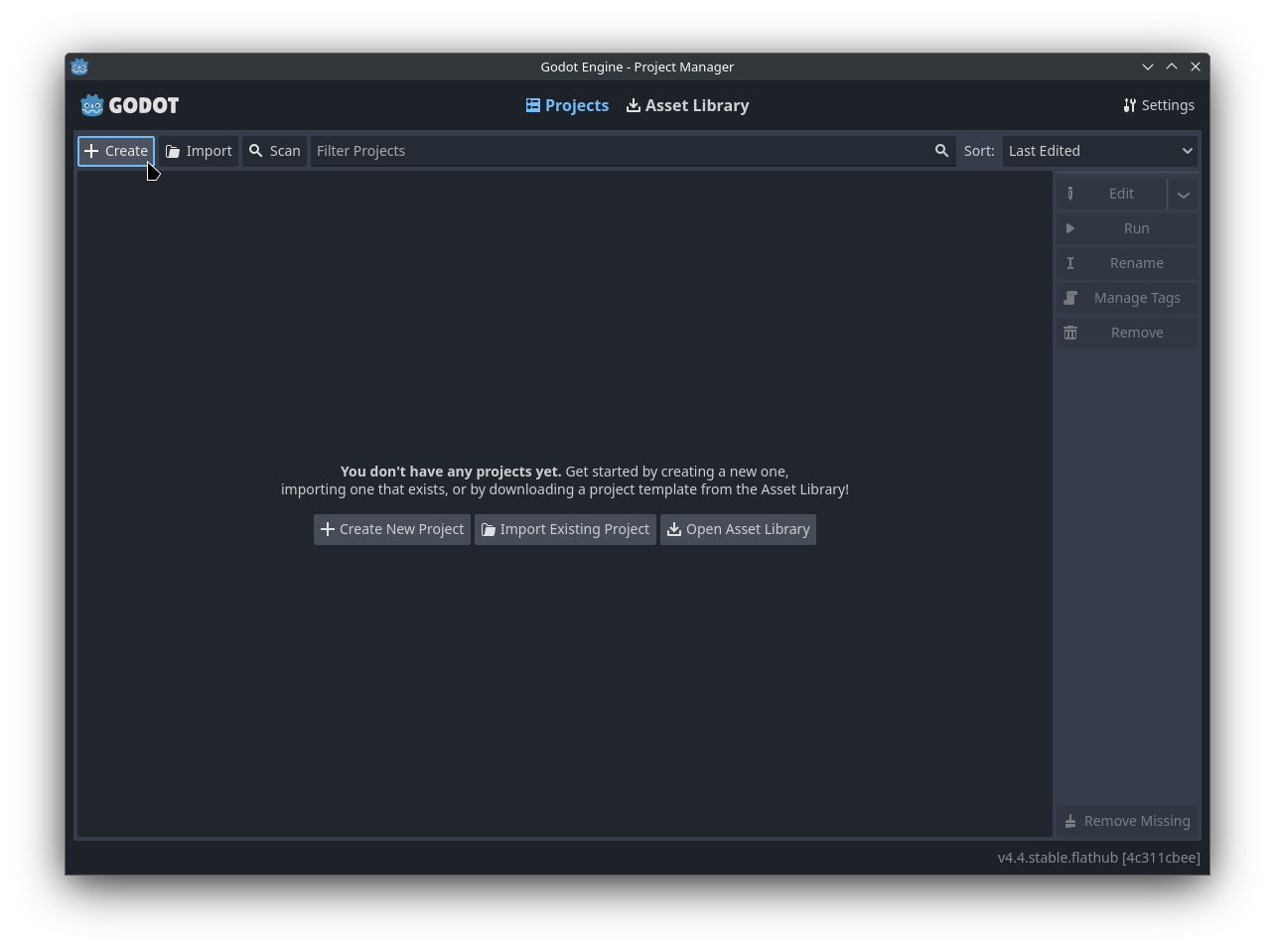
- Click on the
Createbutton in he top left- Alternatively, the shortcut
CTRL + Nalso works
- Alternatively, the shortcut
- If you already have a project stored on your hard drive, you might wanna
Importit
Create New Project window
A new window will open up, asking you how you want to create a new project.
- If you change the
Project Name, the path will be adapted automatically too - The
Project Pathis where the newly created project will be stored - In case the folder doesn't exist yet, the
Create Foldertoggle makes sure that it will be created upon project creation
The Renderer options
There are three different settings for the Renderer:
- Forward+
- Mobiler
- Compatibility
Forward+ has the most advanced graphics engine, recommended for heavy 3D projects. However, projects can only be compiled for a Desktop platform.
Mobile has a faster rendering engine in general and supports Mobile + Desktop as platforms. It does however, lack some advanced graphics available in Forward+
Compatibility has the least advanced graphics engine, but also supports WebGL as platform. In case you don't need 3D graphics, this is the recommended setting here
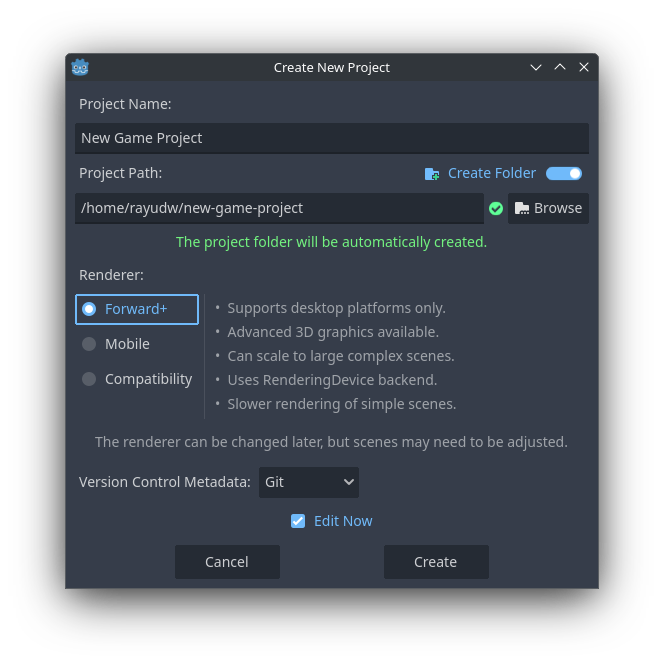
In case you don't use Git as Version Control System (VCS), you should see it available when clicking the dropdown menu after Version Control Metadata
Creating the project
Clicking on the Create button will finally create the project with the settings you chose. If the Edit Now checkbox is ticked, the Editor will open immediately after project creation.