
Flash Win11 iso on Mac
1.) Download the Win11 iso from Microsoft
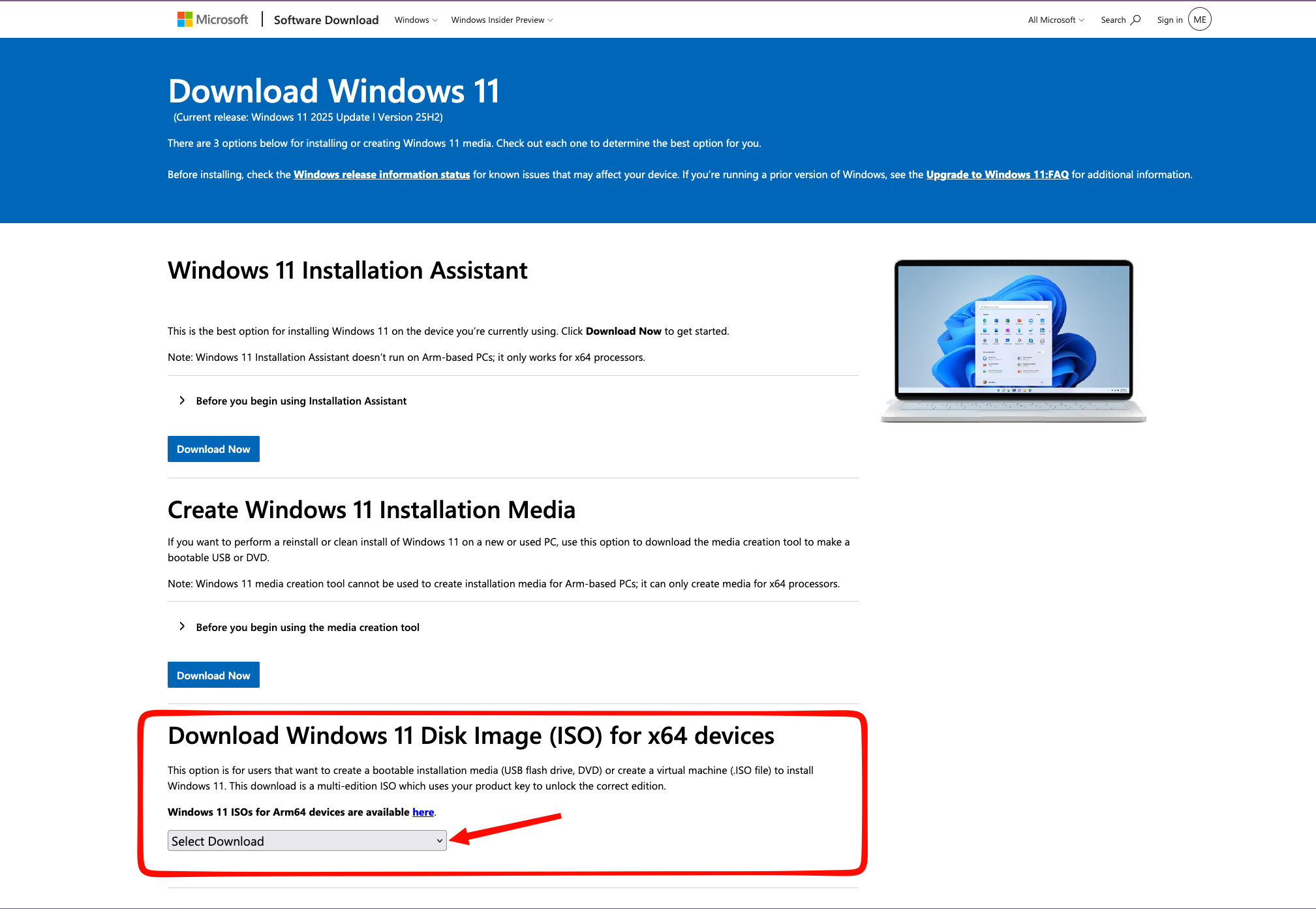
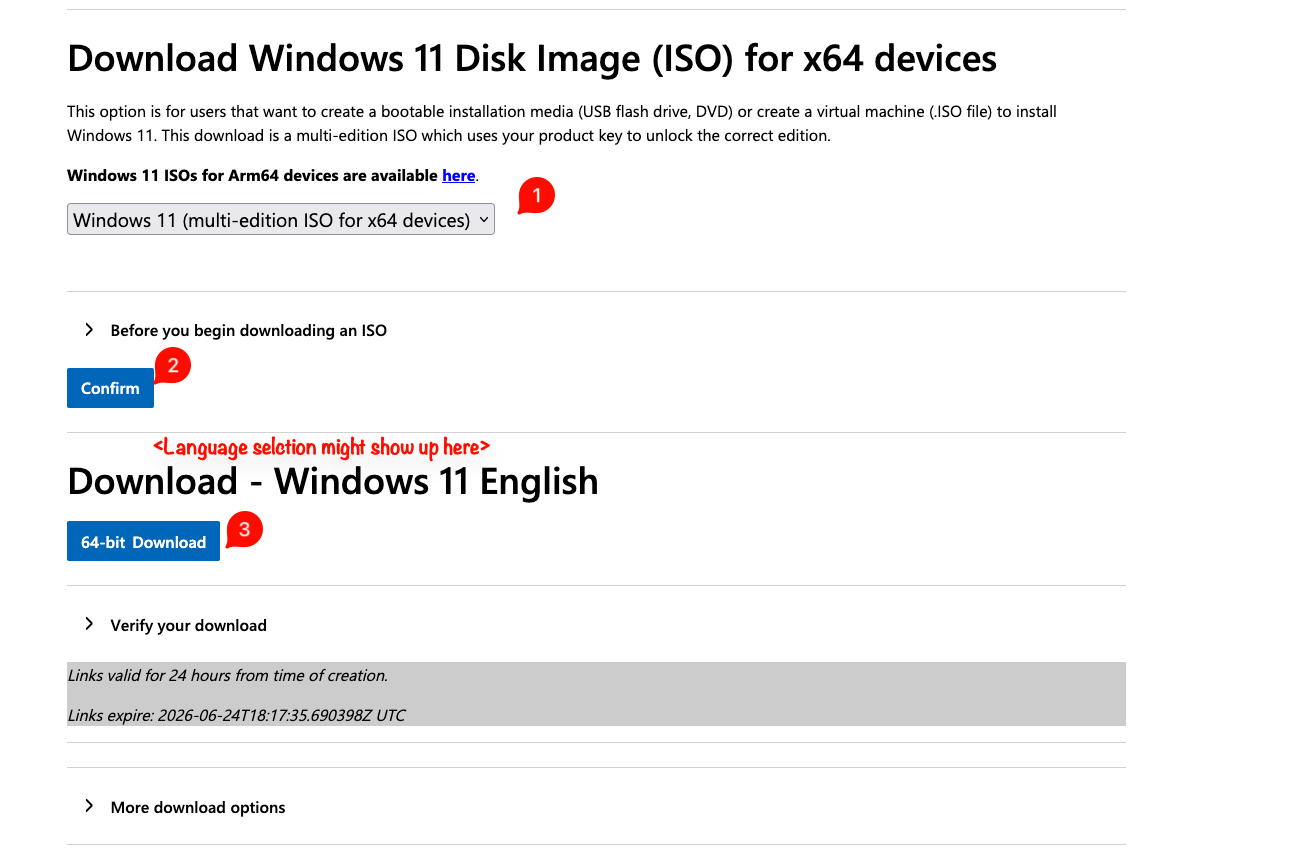
2.) While downloading, check the attachments and download WinDiskWriter for the processor your device has. Apple M chips are Apple Silicon, older Intel based MAcBooks are Intel!
3.) You might need to allow the app to run.
Open Settings > Privacy & Security > Scroll down until you see a message that an app was vblocked from running > Click allow > Confirm with your password > Run the app again
You should be seeing this:
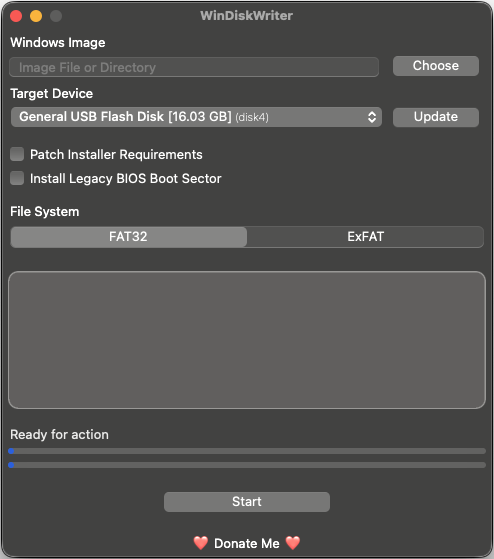
- Choose the downloaded Windows iso file
- Select the USB drive you want to flash it on (careful, USB hard drives might be detected as wlel. Double check please!)
- Use ExFAT as file system
- Press Start
This will take a while then:
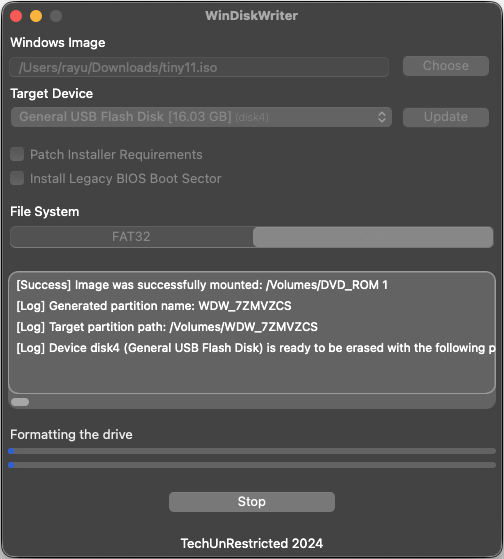
When everything's doe, you'll see this:
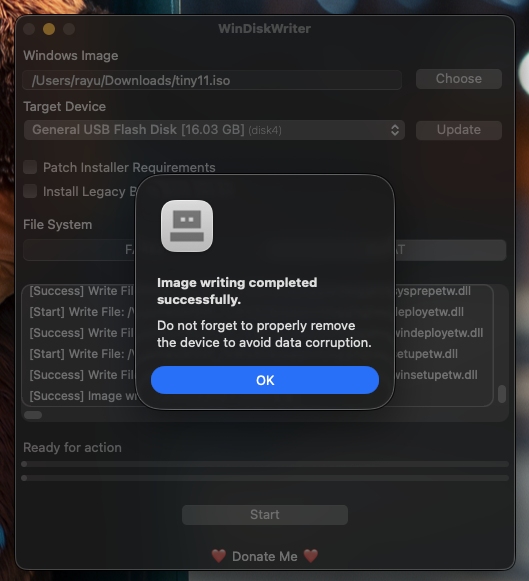
- Safely eject the flash drive
- Insert the flash drive to the target PC
Now, the next thing could be a bit tricky depending on the hardware manufacturer:
- Boot into the BIOS (usually, one of the F keys or DEL on the keyboard. Check for the hardware manufacturer!)
- Look where the boot evices are
- Select the USB drive and hit enter
Now the Windows image should load after a while
If you see a "Press any key or to boot from CD or DVD..." prompt, press any key.